
How to batch-create Shopify product images
Last updated: 2026-10-11
Short answer
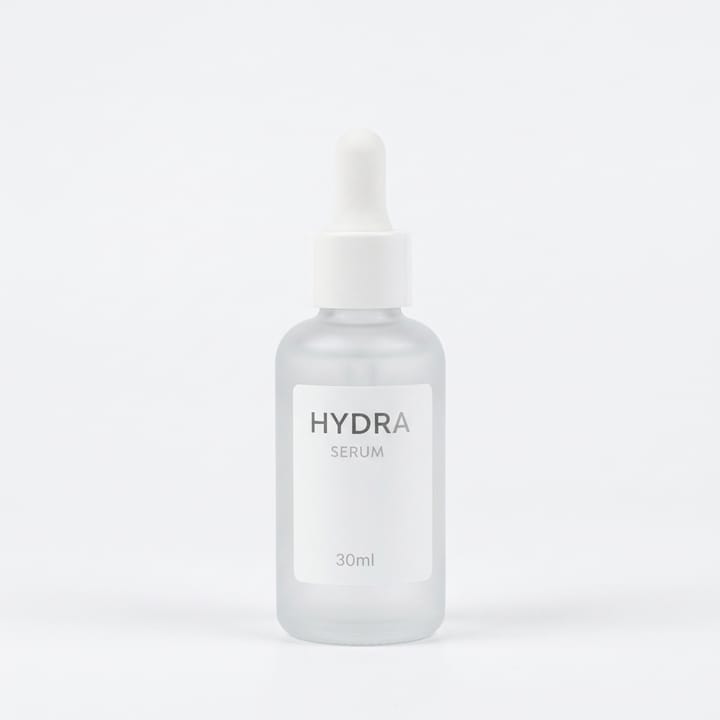
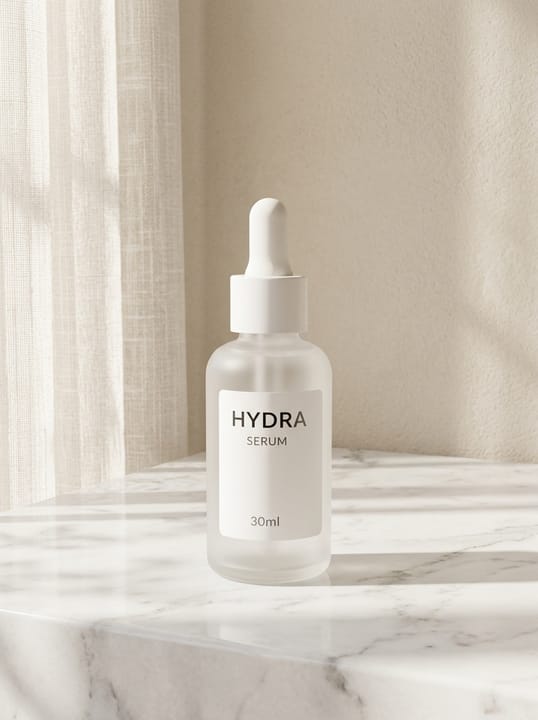
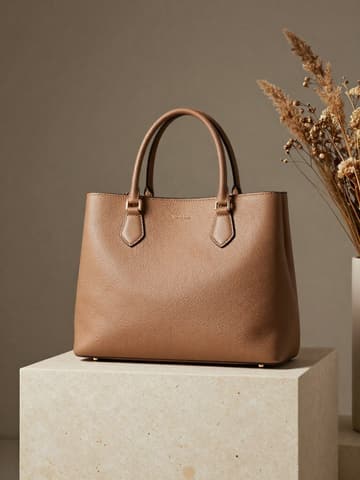
Shopify has no mandatory background rules; it officially recommends 2048×2048 pixels for square product images and keeping all main images in the same aspect ratio so product listings look tidy. The key to Shopify product images with MuseFrames is a consistent store-wide style: upload up to 10 products at once in “AI Photo Studio”, and the same style, lighting and background are applied to all of them, at 1–3 credits per image.
Once you have one you like, save it as a template and drop new products straight into the same scene; you can also create a brand style profile in “AI Product Visual X” to lock in the color tone. Finally, generate the “Shopify product image” channel version (2048×2048, 1 credit each), and round out the product details section with “Product Page Set” and “Commercial Ad”.
Shopify's official product image recommendations
| Item | Requirement |
|---|---|
| Recommended size | Square product images usually display best at 2048×2048 pixelsSource 1 |
| Maximum | Up to 5000×5000 pixels, file under 20 MBSource 1 |
| File format | PNG is best, followed by JPEG; TIFF, BMP, GIF, SVG, HEIC and WebP are also supportedSource 1 |
| Aspect ratio | Use the same aspect ratio for all main images so product listings line up; no specific ratio is requiredSource 1 |
Matching MuseFrames output specs
- Shopify product image: 2048×2048 square
- Store homepage banner: 2520×1080 · 21:9 wide banner, blank space on the left for copy
First make one image you like and set it as the hero image, then choose “Channel versions” on it: each version costs 1 credit and is output at the sizes above.
Which tools to use and how many credits they cost
AI Photo Studio
1–3 credits per image (1K–4K)Up to 10 products at a time, batch-generated with the same style, lighting and background; ideal for store-wide launches.
Open toolVibe Match
1–3 credits per image (1K–4K)Provide a reference image you like (for example, the best-looking photo in your store), and your other products are shot with the same lighting and composition.
Open toolProduct Page Set
1–3 credits per image (1K–4K)Generate 8 product page images at once, with selling-point copy for the target country and language of your choice.
Open toolCommercial Ad
2–6 credits per image (1K–4K)Store homepage banners and promo posters: the product in focus with a typeset headline and button.
Open toolMuseFrames charges in credits: 1 for a 1K image, 2 for 2K and 3 for 4K, with Virtual Try-On, Group Shot, Commercial Ad at 2×; video costs 15 credits for 5 sec and 45 credits for 15 sec.
Steps
- Upload a batch of products to “AI Photo Studio” (up to 10 at a time) and choose the style, lighting and background.
- After generating, pick the one you like, set it as the hero image, and fix details with “Refine parameters” if needed.
- Save this result as a template and apply it directly to new products to keep your whole store's style consistent.
- Generate the “Shopify product image” channel version and upload it to the product media in your Shopify admin.
- Add detail images and homepage banners with “Product Page Set” and “Commercial Ad”.
FAQ
What size should Shopify product images be?
Shopify officially recommends 2048×2048 pixels for square product images, with files under 20 MB. MuseFrames' Shopify channel version outputs at 2048×2048.
How do I keep images for dozens of products in a consistent style?
Upload multiple products to the Photo Studio at once and batch-generate them with the same settings, or use Vibe Match with the same reference image. Batch Template Studio, which lets you save a result you like as a template and apply it to new products in bulk, is available on Scale and above.
Can I use the generated images commercially?
Results from paid plans and credit packs have no watermark and can be used in your store and ads; Free plan results are watermarked and for evaluation only. Before use, check that the product details match the real product.
Sources
All pages below were accessed on 2026-10-11; prices and features may change at any time, so check the official websites for the latest.
- Shopify Help Center: Product media types: https://help.shopify.com/en/manual/products/product-media/product-media-types
Try it with your own product photos
10 credits on sign-up · No credit card required
Start free