
How to make WooCommerce product photos with AI
Last updated: 2026-10-26
Short answer
WooCommerce does not impose a single marketplace MAIN rule — image display depends on your theme's single / catalog / thumbnail sizes (WooCommerce docs recommend uploading ≥800×800 and configuring sizes in Customizer or block theme). MuseFrames helps you produce a consistent catalog look (white or brand studio), then you upload into WordPress media and let Woo generate thumbnails.
Credits follow MuseFrames public pricing. For WordPress theme image settings, cite WooCommerce.com docs in Sources — this page does not invent theme defaults.
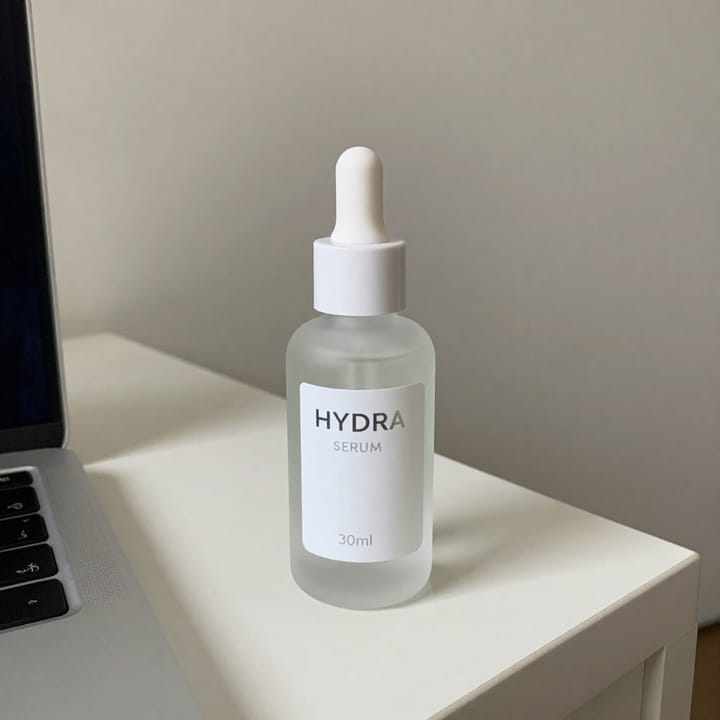
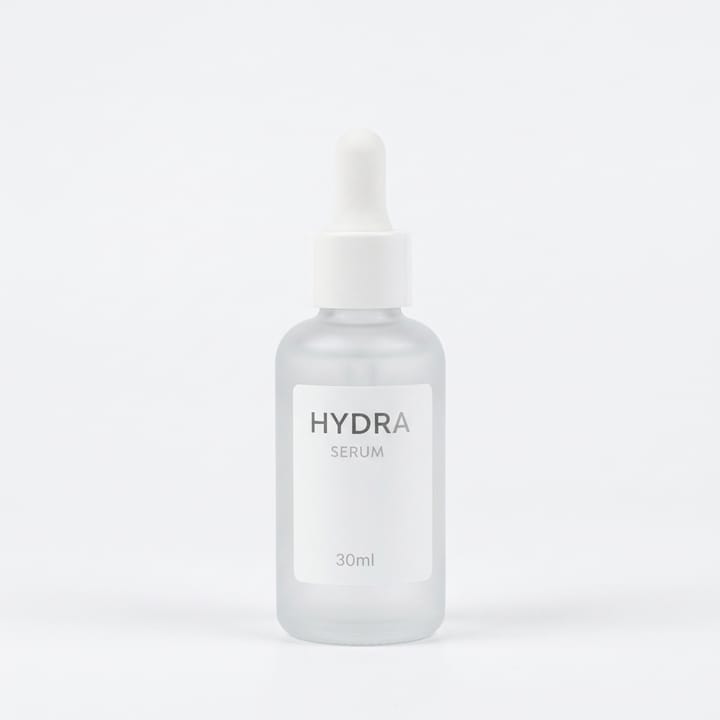
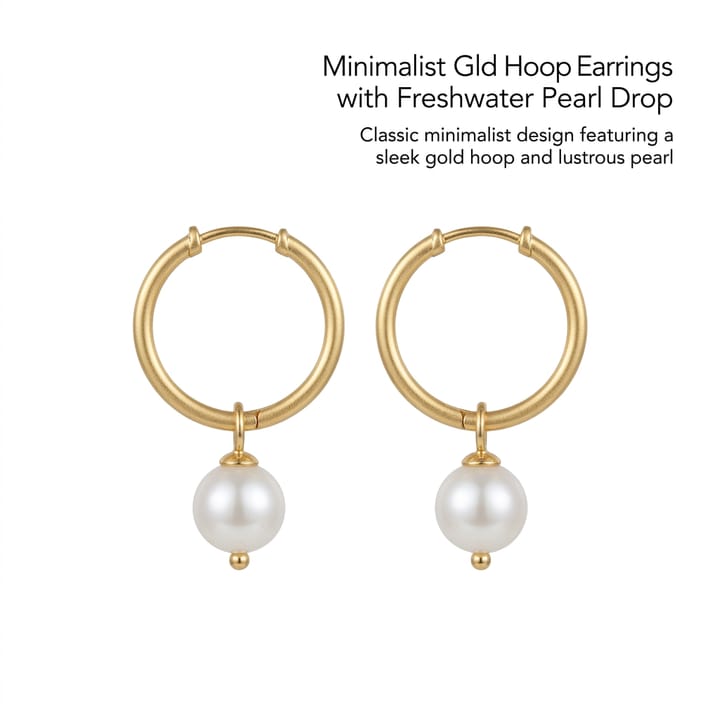

WooCommerce image expectations
| Item | Requirement |
|---|---|
| Upload size | Woo docs: upload ≥800×800; larger for detail SKUs — cite WooCommerce.com docsSource 1 |
| Image roles | Single product, catalog, gallery thumbnail — theme-controlledSource 1 |
| Background | No forced pure white; keep catalog style consistent (see Shopify guide for brand-store parallels)Source 2 |
| Blurry fix | If soft, regenerate thumbnails per Woo "Fixing blurry product images" guidanceSource 1 |
Matching MuseFrames output specs
- Shopify product image: 2048×2048 square
First make one image you like and set it as the hero image, then choose “Channel versions” on it: each version costs 1 credit and is output at the sizes above.
Which tools to use and how many credits they cost
Background Remover
1–3 credits per image (1K–4K)Cutouts when the theme needs transparent or white plates.
Open toolMuseFrames charges in credits: 1 for a 1K image, 2 for 2K and 3 for 4K, with Virtual Try-On, Group Shot, Commercial Ad at 2×; video costs 15 credits for 5 sec and 45 credits for 15 sec.
Steps
- Decide your theme's target display size (Appearance → Customize → WooCommerce → Product Images, or block theme templates).
- Upload a clear product photo to MuseFrames.
- Generate a consistent studio or white-BG look in AI Photo Studio (batch up to studio limits).
- Export square or theme-matched crops; keep margins consistent across SKUs.
- Upload to WordPress media; let Woo generate thumbnails; regenerate if soft.
FAQ
Does WooCommerce require pure white backgrounds?
No. Unlike Amazon MAIN, WooCommerce does not mandate pure white. Choose white or brand studio looks for consistency — see also /en/solutions/white-background-product-photos.
What size should I upload?
WooCommerce docs commonly recommend uploading at least 800×800 so themes can derive catalog and thumbnail sizes. Re-check current WooCommerce.com product-image docs linked in Sources.
How is this different from the Shopify guide?
Same studio tools; Shopify themes and apps differ from WordPress/Woo image roles. Use /en/solutions/shopify-product-photos for Shopify-specific notes and this page for Woo theme sizing.
Can I batch a whole Woo catalog?
Use Photo Studio batch (up to 10 products at a time on live copy) and credits per /en/pricing. For larger catalogs see /en/solutions/bulk-product-photos.
Why do my Woo thumbnails look soft?
Often a theme thumbnail size or regeneration issue. Follow WooCommerce guidance on fixing blurry product images, then re-upload sharper masters from MuseFrames if needed.
Related comparisons
Parity with Shopify and Etsy channel guides; white-background packshots and bulk catalog runs for scale.
Sources
All pages below were accessed on 2026-10-26; prices and features may change at any time, so check the official websites for the latest.
- WooCommerce Docs — Product Images (Official): https://woocommerce.com/document/image-sizing-for-theme-developers/
- Shopify Help Center: Product media types: https://help.shopify.com/en/manual/products/product-media/product-media-types
- MuseFrames Pricing: https://museframes.com/en/pricing
- MuseFrames Features: https://museframes.com/en/features
Try it with your own product photos
Create account when you hit Generate — Google or email.
Generate your first catalog shot free