
AI jewelry try-on and on-model catalog photos
Last updated: 2026-10-26
Short answer
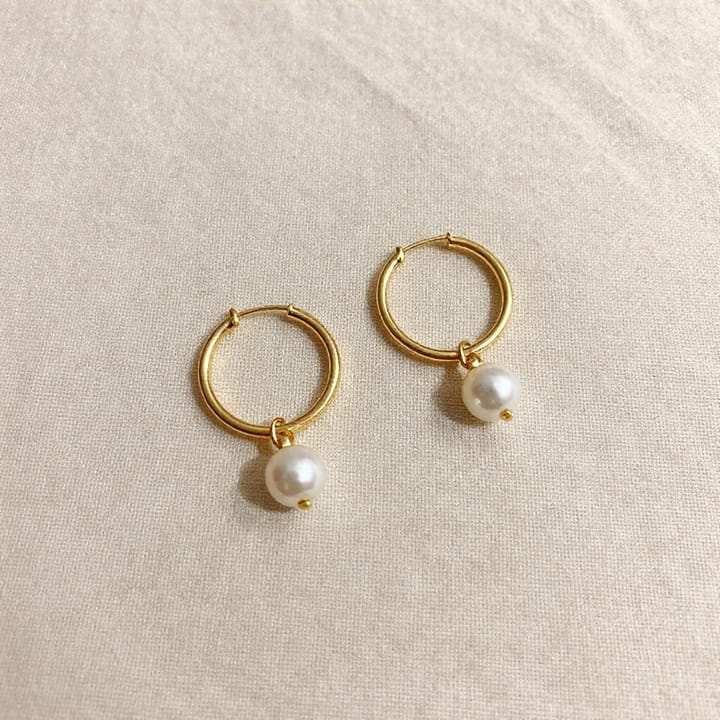
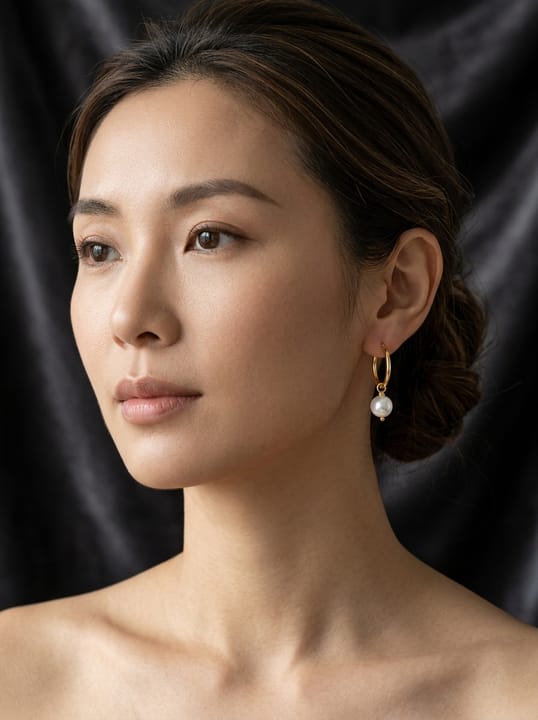
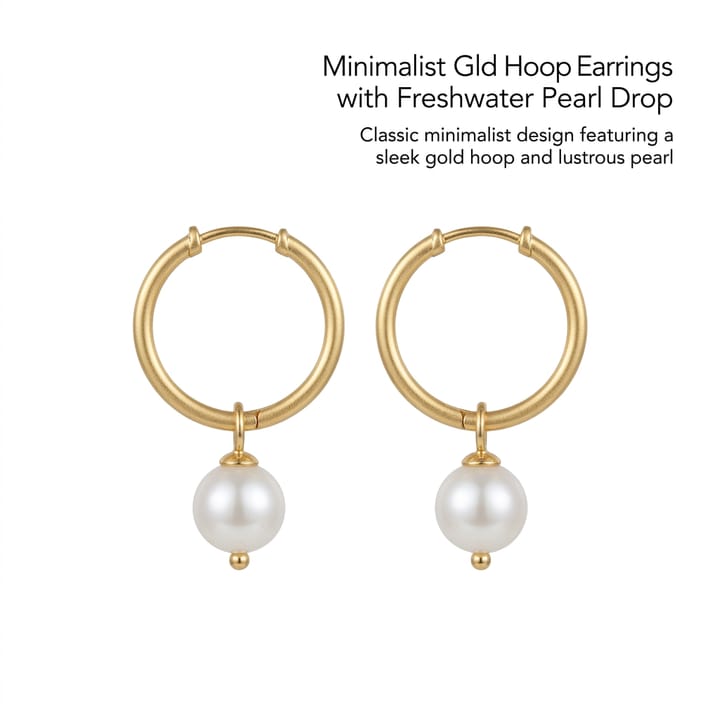
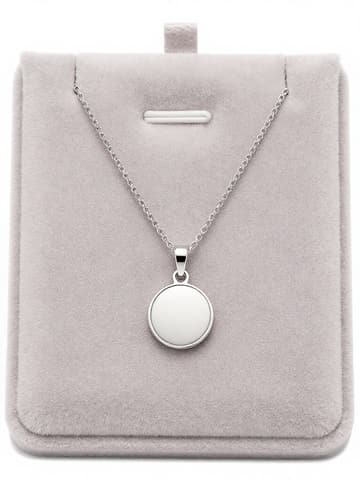
Show rings, earrings, and necklaces on-model with AI try-on and catalog shots without a full jewelry shoot. Use this page for try-on / on-model; use /en/solutions/jewelry for general jewelry product-photo guidance.
Open Virtual Try-On or AI Model Studio (credits per public pricing / resolution). Optionally produce clean product-only frames in AI Photo Studio. QA reflections, metal color and scale before listing.
Try-On vs Model Studio for jewelry
| Item | Requirement |
|---|---|
| Sibling guide | /en/solutions/jewelry covers shooting and enhancing jewelry product photos — do not replace itSource 2 |
| Try-On / Model | On-model and try-on views; treat fit/scale as approximateSource 2 |
| Amazon MAIN | White background, product-accurate; AI people may need metadata labelingSource 1 |
| Reflections | Metal/gemstone highlights vary with source photo quality — always QASource 2 |
Matching MuseFrames output specs
- Instagram post: 1080×1350 · 4:5 portrait
- Amazon hero image: 2000×2000, pure white background, product fills 85%
First make one image you like and set it as the hero image, then choose “Channel versions” on it: each version costs 1 credit and is output at the sizes above.
Which tools to use and how many credits they cost
Virtual Try-On
2–6 credits per image (1K–4K)Virtual try-on for rings, earrings, necklaces on a model.
Open toolAI Photo Studio
1–3 credits per image (1K–4K)Product-only and background variants for the gallery.
Open toolMuseFrames charges in credits: 1 for a 1K image, 2 for 2K and 3 for 4K, with Virtual Try-On, Group Shot, Commercial Ad at 2×; video costs 15 credits for 5 sec and 45 credits for 15 sec.
Steps
- Upload a sharp photo of the piece (true metal/stone color).
- Open Virtual Try-On or Model Studio.
- Generate on-model / try-on views; keep scale realistic.
- Optionally produce clean product-only frames in Studio for the gallery.
- QA reflections and product accuracy before listing.
FAQ
How is this different from the jewelry product photo guide?
/en/solutions/jewelry covers shooting and enhancing jewelry product photos. This page focuses on AI try-on and on-model catalog views. Link both.
Can AI try-on show accurate ring size?
Treat fit/scale as approximate. Always QA size cues and disclose per your store policy; MuseFrames does not replace physical sizing.
Which tools do I use?
/tool/try-on and /tool/model for on-model; /tool/studio for product-only and backgrounds. Credits per public pricing.
Will metal and gemstone reflections look real?
Results vary with source photo quality. Start with sharp, well-lit uploads and review highlights before publishing. See also the jewelry shoot guide for capture tips.
Related comparisons
Pair with the jewelry shoot guide and AI fashion models. For fashion try-on tools, see MuseFrames vs FASHN.
Sources
All pages below were accessed on 2026-10-26; prices and features may change at any time, so check the official websites for the latest.
- Amazon Seller Central: Product image guidelines: https://sellercentral.amazon.com/help/hub/reference/external/G1881
- MuseFrames Features: https://museframes.com/en/features
- MuseFrames Pricing: https://museframes.com/en/pricing
- MuseFrames Acceptable Use Policy: https://museframes.com/en/legal/acceptable-use
Try it with your own product photos
Create account when you hit Generate — Google or email.
Generate your first catalog shot free